Create credit memos
📝 Note: This documentation page may refer to Manage > Marketplace in navigation steps. If the Manage option is not available in your navigation, click the grid icon on the top-left corner of your header and click Marketplace.
This topic explains how to view the credit memo list and how credit memos are created on your marketplace. A credit memo records a credit owed to a customer or reseller. For an overview of credit memos and how credit is applied after creation, see Credit memos and Manage credit memos.
View credit memos
To view credit memos
- Go to Manage > Marketplace > Dashboard > BILLING | Credit Memo. The Credit Memo page opens.
- Use Search or Show filters to find credit memos by criteria such as status, customer, or date range.
- Click a credit memo in the list to open its detail page. The detail page displays the following:
-
Customer name, company, credit memo date, number, and ID. The credit memo number reflects the prefix configured on the Invoice & Credit Memo page (see Configure document numbering).
-
For ad hoc credit memos, Credit reason — The reason entered at creation (for example, discount, bonus, or duplicate). Visible to Marketplace Managers and Resellers in the internal UI only. The field is hidden when no reason was provided. The credit reason does not appear on the customer-facing credit memo view or on the downloaded PDF. If the reason text exceeds a single line, it displays as a full-width row beneath the details card.
-
The Summary section displays the date of the memo, unit price, quantity, and total credit amount.
-
The Payout history section lists payout history for the credit memo, such as payout ID, date, payout method, and payment status.
-
The Credit memo balance history section displays the invoice number for which the credit memo is used, the amount due, and how much credit was applied for each invoice.
-
Create credit memos
📝 Note: You cannot create credit memos for your own company.
A credit memo can be issued without manual steps when billing produces a negative balance, or through the UI when you need to credit specific invoice lines or issue a standalone adjustment. Credit memos are created in one of the following ways:
Automatically by the system
The platform creates a credit memo when billing events produce a credit, such as:
- Subscription downgrades or changes that result in a negative balance
- Refunds
- Negative metered usage
- One-off order corrections
Manually from an invoice
Marketplace Managers (and other authorized roles) can create a credit memo from an existing unpaid invoice.
📝 Note: Invoice-aligned and grouped credit memo creation from an invoice requires billing pipeline V2 and is enabled by default.
To create a credit memo from an invoice
- Open the invoice from Manage > Marketplace > Dashboard > BILLING | Invoices.
- On the invoice detail page, open the gear menu and select Create Credit Memo.
The Create Credit memo page opens. During creation you can:- Review billing items grouped at the product level, using the same structure as the Invoice Breakdown and invoice PDF
- See billing action context (for example, Upgrade, Downgrade, Renewal, One-time)
- Expand groups to select items for credit at the group or individual line level, including negative lines
- Adjust the credit amount before issuing
- For physical product lines, review tax calculated using the shipping address when available (when the feature is enabled)
- Set or override the Tax Code on individual line items before issuing the credit memo
- Select or clear Auto-apply this credit memo to outstanding invoices when credit memo auto-apply controls are enabled (see Auto-apply credit memos)
- Click Apply credit memo. The credit is applied toward the selected unpaid invoices for the same customer.
Ad hoc (goodwill or standalone credit)
You can create a credit memo that is not tied to a specific invoice—for example, a goodwill credit.
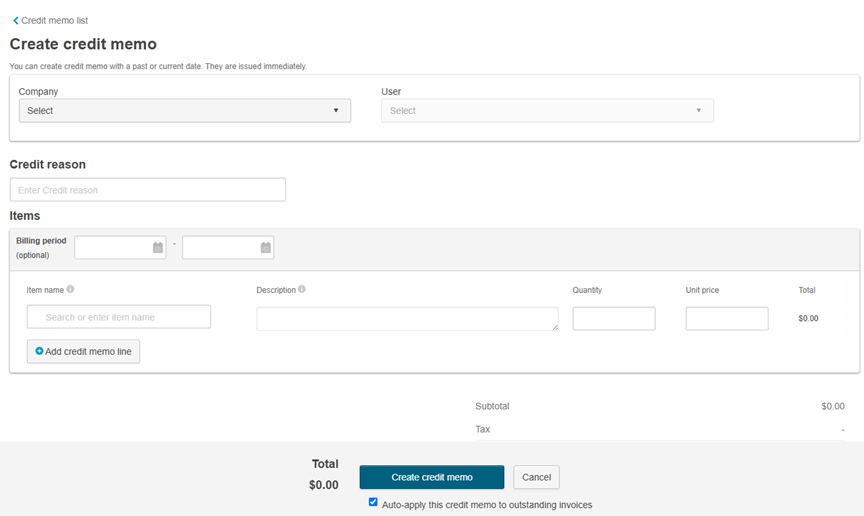
To create an ad hoc credit memo
- Go to Manage > Marketplace > Dashboard > BILLING | Credit Memo.
- Click Create credit memo.
- Select the company and user.
- In the Credit reason field, provide the reason for which you are creating the credit memo (for example, discount, bonus, or duplicate). After creation, the reason appears on the credit memo detail page for Marketplace Managers and Resellers in the internal UI. It is not shown on the customer-facing view or PDF.
- In the Items section, provide the following details:
- (Optional) Billing period — Date range of the billing period for which you are creating the credit memo.
- Item name — Product ID or name selected from the catalog, or a custom charge name. Items with a custom charge name are not included in Reseller reconciliation.
- Description — Reason for the charge or information such as product edition.
- Quantity and Unit price.
- Tax Code — (When enabled) Override the tax code for the line item. Tax for physical product lines is calculated using the shipping address when available.
- To add more line items, click Add credit memo line.
- When credit memo auto-apply controls are enabled, review Auto-apply this credit memo to outstanding invoices (see Auto-apply credit memos).
- Click Create credit memo.
Ad hoc creation supports subscription lookup by product name and, where enabled, by subscription UUID.
Auto-apply credit memos
❗ Important: Credit memo auto-apply controls are in Early Availability (EA) status. This capability is not enabled by default. Contact your AppDirect technical representative to request it.
When the feature is enabled, Marketplace Managers can control auto-apply at two levels:
| Level | Control | Location |
|---|---|---|
| Marketplace | Automatically apply credit memo to outstanding invoices | Manage > Marketplace > Settings > BILLING SETTINGS ** |
| Per credit memo | Auto-apply this credit memo to outstanding invoices | Credit memo creation screen (ad hoc or from invoice) |
The per-memo checkbox appears only when the marketplace-level setting is enabled. Its default mirrors the marketplace setting. You can override it during creation for a specific credit memo. When your selection differs from the marketplace default, override notice text appears on the creation screen.
When the marketplace-level setting is disabled, the per-memo checkbox is not available. Marketplace Managers can still apply credit manually after creation. See Manage credit memos.
The marketplace-level setting applies at the time of application, regardless of when the credit memo was created. You cannot change auto-apply on existing credit memos after creation.
For configuration steps and limitations, see Configure credit memo settings.
Tax codes and tax calculation for physical products
When enabled, physical product lines on credit memos use the shipping address for tax when available. Digital lines use existing tax logic. See Credit memos.
Use Tax Code to override tax at the line-item level when creating or editing credit memos or related invoice lines. Tax recalculates per line based on the applicable address and tax code.
📝 Note: Tax Code overrides are also available in invoice edit workflows. See View invoice details.
❗ Important: This feature is in Early Availability (EA) and is not enabled by default. Contact your AppDirect technical representative to request it.
Was this page helpful?
Tell us more…
Help us improve our content. Responses are anonymous.
Thanks
We appreciate your feedback!